 Little Mac Apps
RecLumen Coming soon
Record your screen, keep it on your Mac
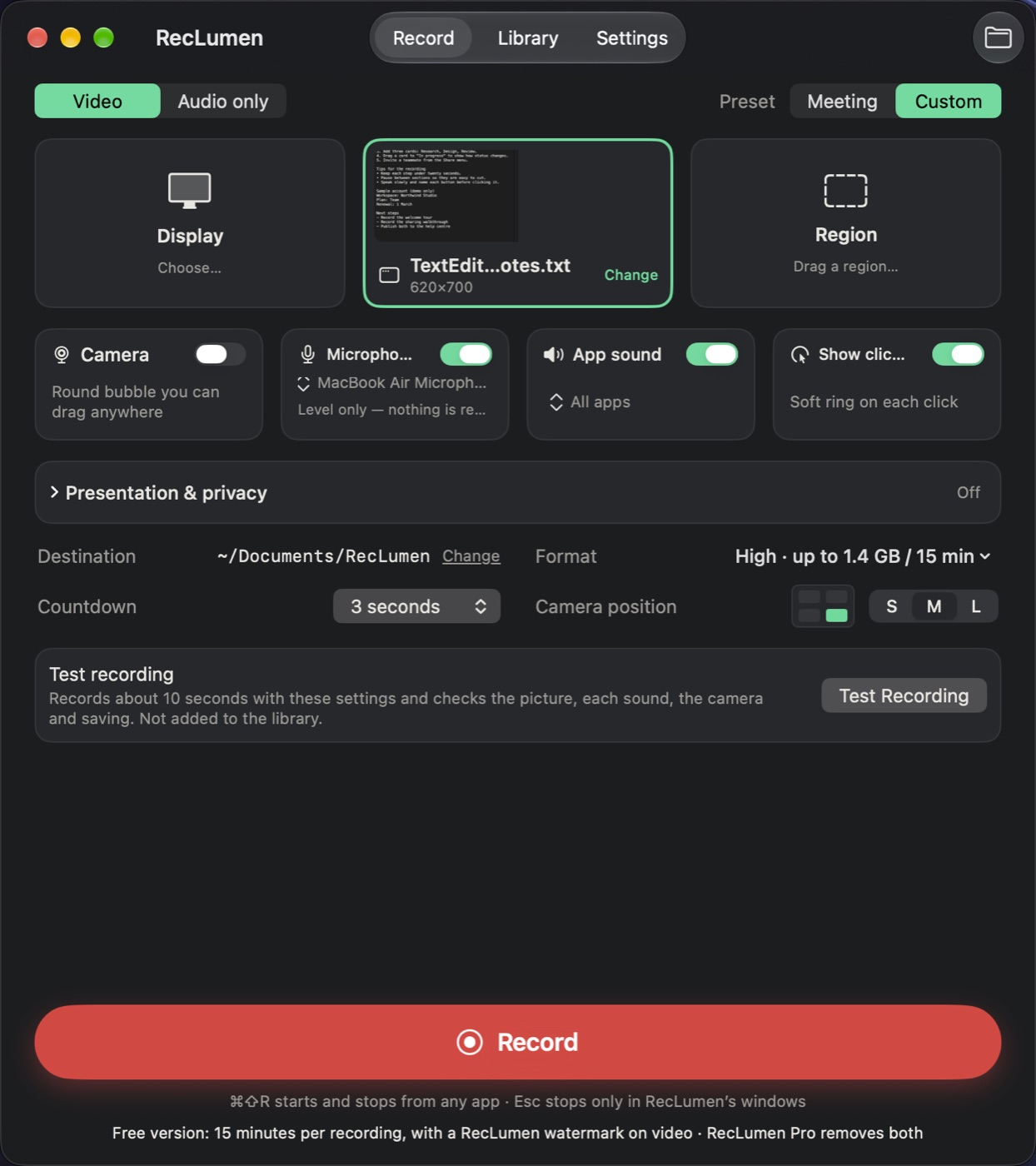
A focused screen recorder. Pick a whole display, one window or a region you drag, press Record, and get a finished movie file, with your voice, other apps' sound and a round camera bubble when you want them. No account, no analytics, no network access.
Coming soon to the Mac App Store · Not available to download yet · macOS 15 or laterFree, with every feature: recordings up to 15 minutes each, with a RecLumen watermark · RecLumen Pro removes both: $19.99 one-time purchase on the US Mac App Store (prices vary by country)
Record
Everything you need for a tutorial, a demo, a meeting or a bug report.
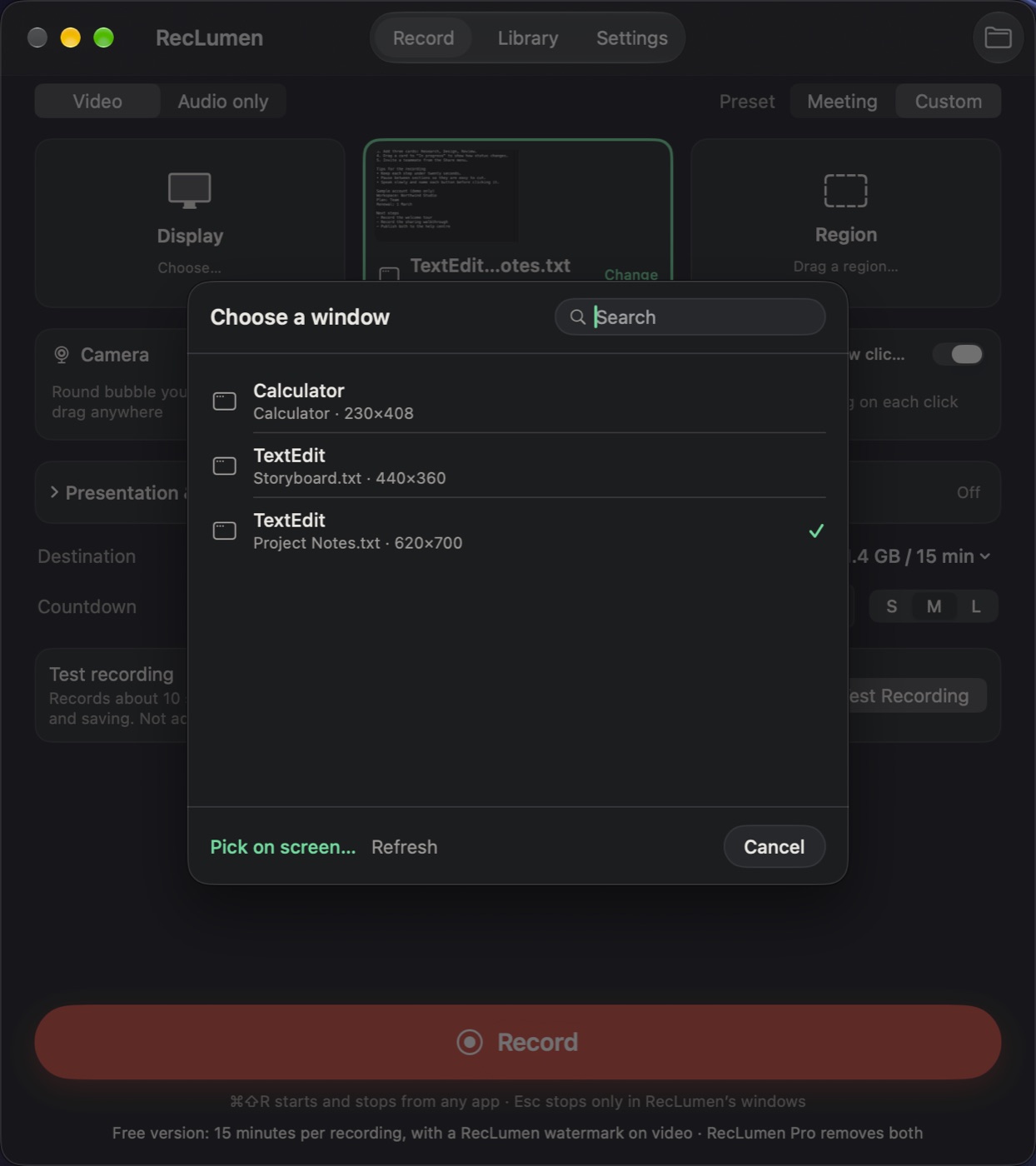
Display, window or region
Record a whole display, a single window or a region you drag. Hold Shift while dragging to keep it 16:9.
Voice and app sound
Microphone and app sound mixed into one track, with a live health indicator for each. Record every app's sound, or only the one you choose, such as your meeting app.
Camera bubble
A round webcam picture in any corner, in three sizes, drawn straight into the video. Drag it while you record.
Pause, mute and bookmark
A small floating timer bar has Pause, Bookmark, Mute and Stop. Mute the microphone or app sound without pausing. The bar is never part of the recording.
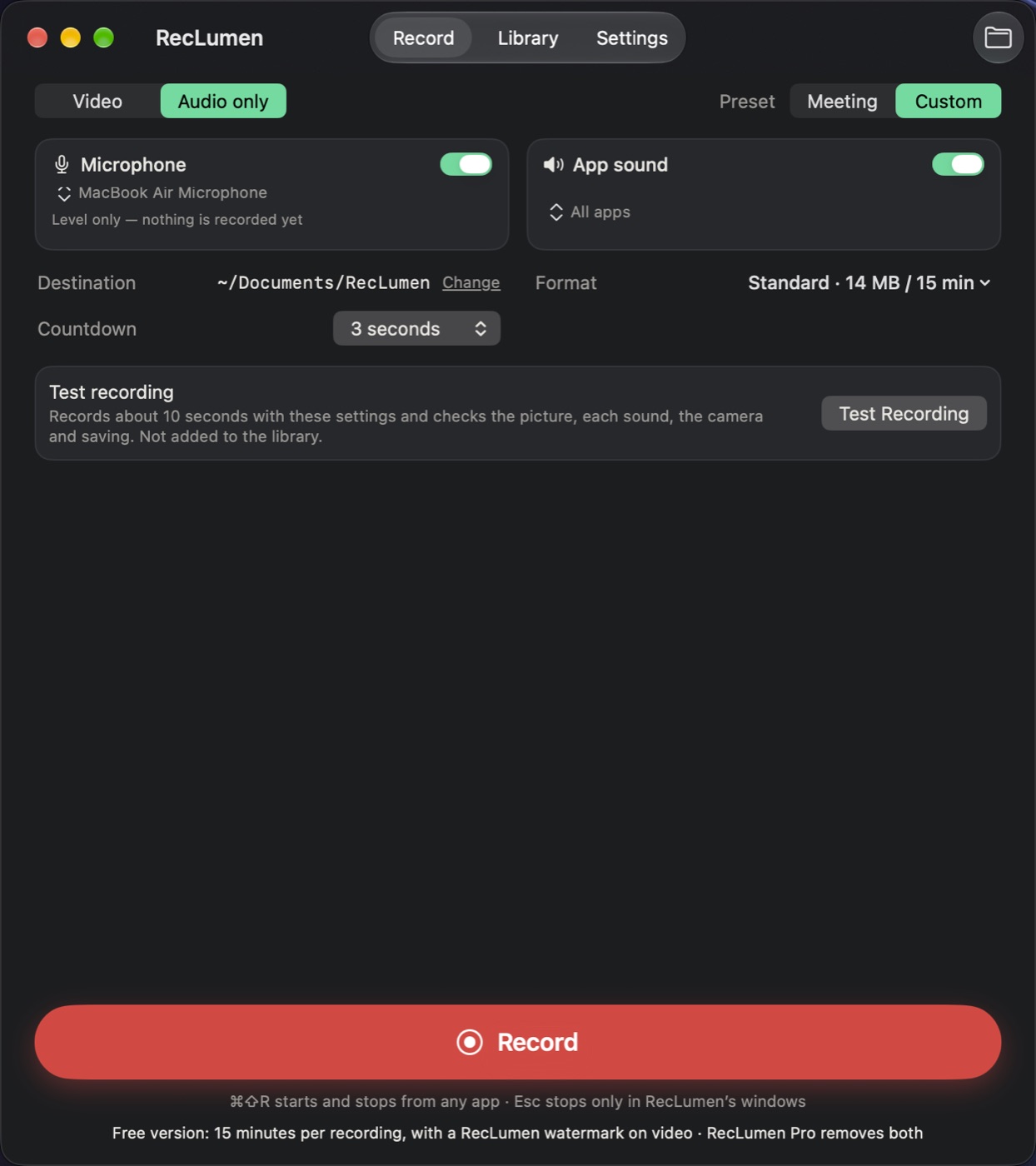
Audio only
Record your voice, a meeting's sound, or both to a small audio file, with no picture.
Test recording
Ten seconds that check the picture, each sound, the camera and saving before a recording that matters.
Meeting preset
One click for microphone and meeting sound together, tuned for headphones or speakers.
Six formats
From High (1080p, 60 fps) down to Tiny. Each one shows how much disk 15 minutes takes, from 1.4 GB to 30 MB.
Keeps your Mac awake
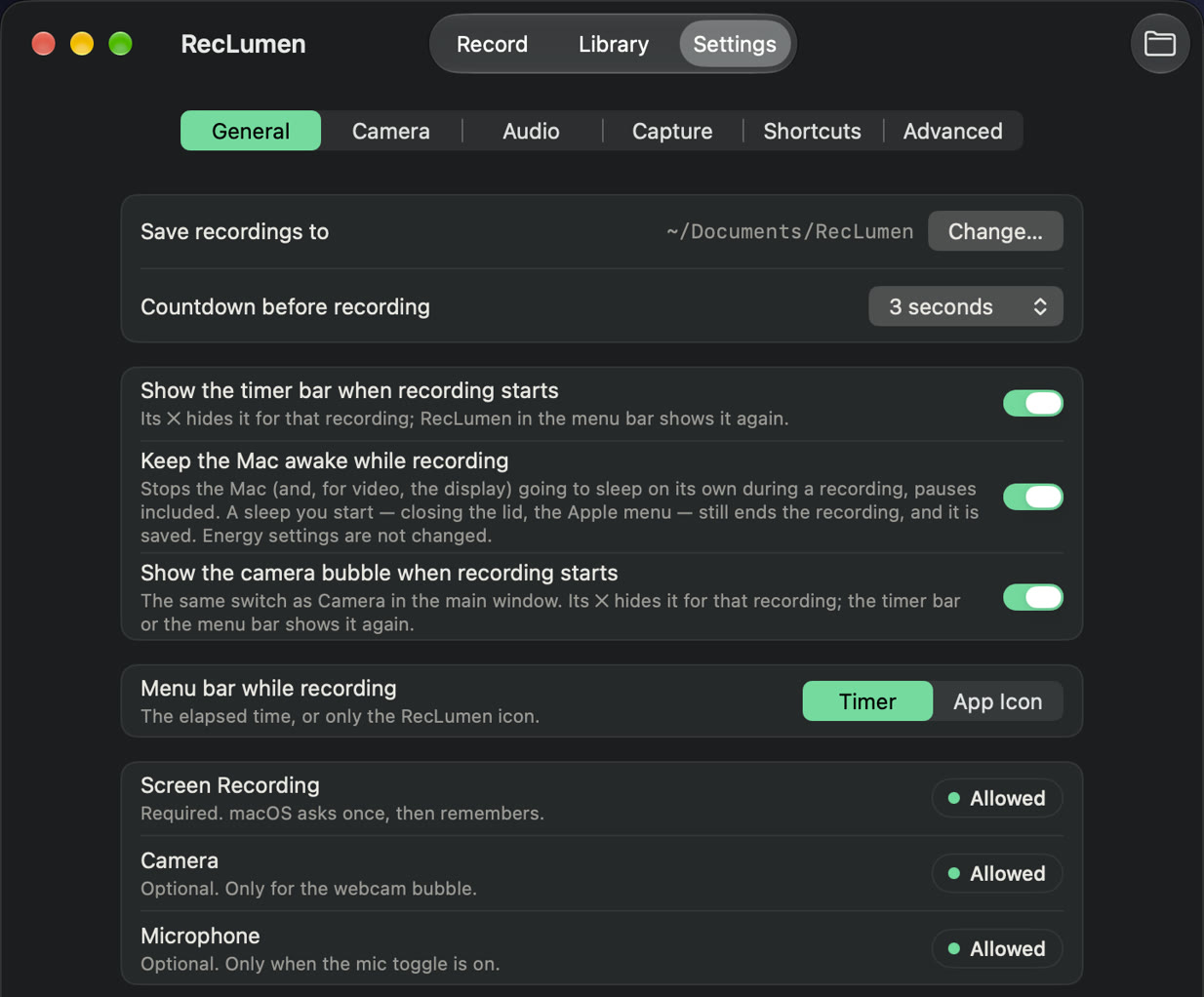
The Mac and its display don't go to sleep on their own while you record.
Present and protect
Tools for tutorials, and a way to keep private things out of the picture.
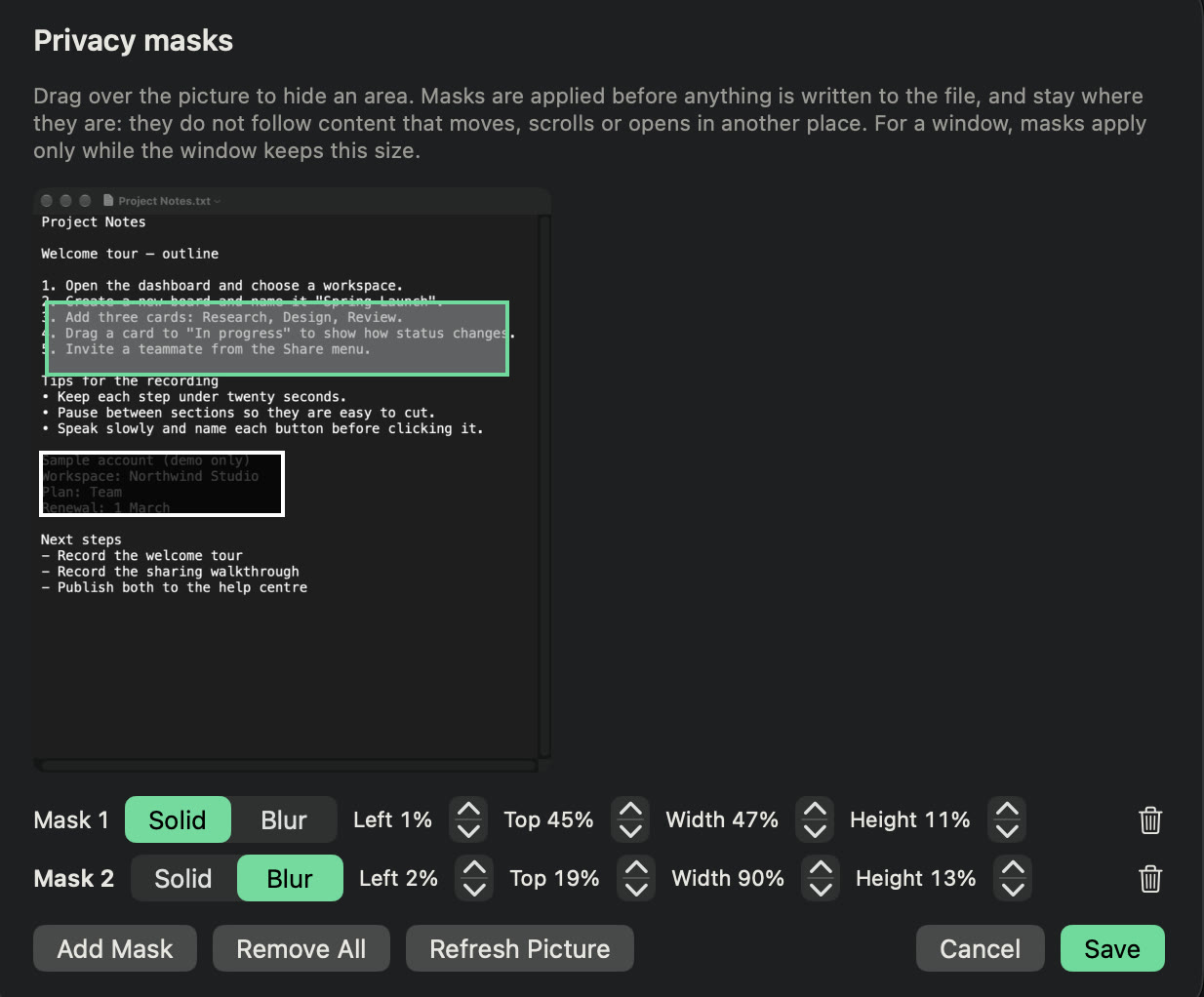
Privacy masks
Mark areas of the screen as solid or blurred. They are covered in every frame before anything is written to the file.
Click highlights
A soft ring on each click, so viewers can follow along.
Cursor spotlight
Gently dims everything except the area around the pointer.
Keyboard shortcuts on screen
Shows combinations like ⌘ C for a moment. Ordinary typing and passwords are never shown.
Automatic zoom
Eases in toward your clicks and back out after a pause.
When you stop
Your recording is already saved. Find it, play it and search what was said.
Saved the moment you stop
The recording goes straight to your folder as a finished file, in the format you chose. There is no export step.
Library
Search, sort and play your recordings, jump to bookmarks, rename them or show them in Finder.
On-device transcripts
Optional, on macOS 26 or later. Searchable, correctable, and exportable as text or subtitles. Nothing is uploaded.
Built not to lose a take
Recordings are written in short fragments. A crash, a forced quit or a full disk keeps everything up to the last couple of seconds, and RecLumen offers the recovered recording next time it opens.
Private by design
No account, no analytics, no advertising. The app's sandbox doesn't allow network access, so recordings stay on your Mac unless you share them.
Your folder, your shortcut
Saved to Documents › RecLumen or any folder you choose. ⌘ ⇧ R starts and stops from any app, and the menu bar item is always there.
Free and Pro
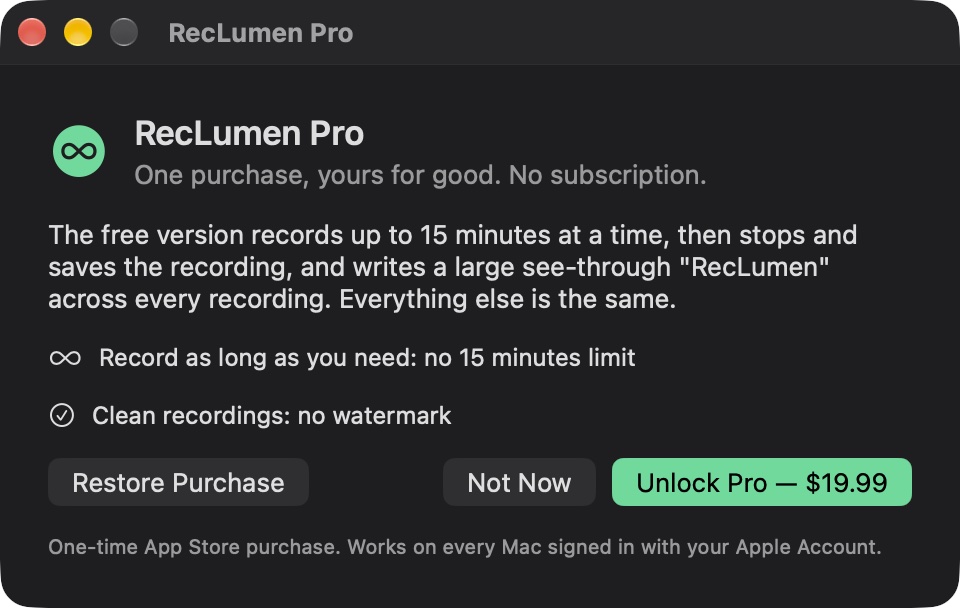
Every feature is free. RecLumen Pro is a one-time purchase that removes the two limits of the free version. No subscription.
| Feature | Free | Pro |
|---|---|---|
| Record a display, a window or a region | ✓ | ✓ |
| Microphone and app sound, all apps or one | ✓ | ✓ |
| Camera bubble | ✓ | ✓ |
| Pause, resume, mute and bookmarks | ✓ | ✓ |
| Audio-only recording | ✓ | ✓ |
| Test recording | ✓ | ✓ |
| Privacy masks | ✓ | ✓ |
| Click highlights, cursor spotlight, shortcut display, automatic zoom | ✓ | ✓ |
| All six recording formats | ✓ | ✓ |
| Library: search, play, rename | ✓ | ✓ |
| On-device transcripts (macOS 26 or later) | ✓ | ✓ |
| Recovery after a crash or forced quit | ✓ | ✓ |
| Menu bar control and global shortcut | ✓ | ✓ |
| Length of each recording | Up to 15 minutes | Unlimited |
| Watermark on video | Large see-through “RecLumen” | None |
| Price | Free | $19.99 once, on the US Mac App Store |
Recording other people
RecLumen doesn't notify meeting participants. Tell them you're recording and get any consent required where you and they are. Screen, camera and microphone access are always asked for by macOS, and you can turn them off at any time in System Settings.
Support
Stuck, found a bug, or have an idea? Send a message or email help@littlemacapps.com and you'll hear back from the developer.
Common questions
When can I get it? RecLumen is coming soon to the Mac App Store. Email help@littlemacapps.com and you'll get a note when it's out.
RecLumen says it can't record the screen. Turn RecLumen on in System Settings › Privacy & Security › Screen & System Audio Recording, then quit and reopen it. macOS applies the change only after the app restarts.
Where are my recordings? In ~/Documents/RecLumen once you allow it (macOS asks once), otherwise ~/Movies/RecLumen, or the folder you chose in Settings. The Library page and the menu bar item's Open Recent list them.
How-to guides: Screen record with sound, Record internal audio (system audio), Record your screen and webcam at the same time, Hide passwords and private info when screen recording, Record a meeting, Record only part of your screen.
When writing in, include your macOS version, your RecLumen version (RecLumen › About RecLumen) and what you expected to happen. Never send passwords or recordings with private content.